Pairing Casambi Cloud Gateway
Physical Casambi Cloud Gateway units can be added to networks in two ways:
- Replacing a Gateway Placeholder: Drop the physical device onto an existing placeholder (following the same process used for pairing sensors or switches).
- Adding as a New Device: Pair the gateway directly into the layout without a pre-configured placeholder.
To enable Cloud Gateway functionality, the target network's sharing mode must be configured as Password protected. Gateways cannot operate on Open networks. Therefore, ensure the network's visibility property is set to Password protected before pairing a Cloud Gateway.
See more in the Network properties page.
Pairing the Cloud Gateway in Casambi Pro for iOS
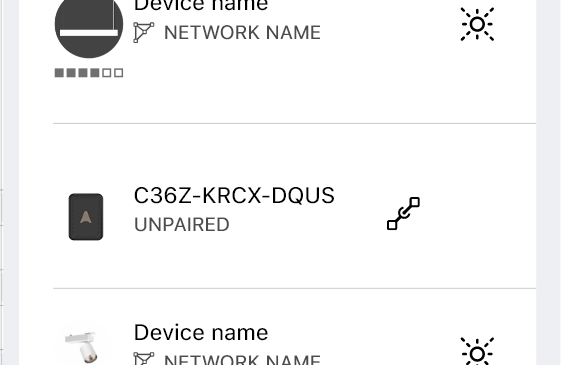
To be detected by Casambi Pro and displayed in the Nearby Devices list, the gateway unit must be powered on.
Unpaired gateway devices appear in the list with their serial numbers.
Pairing is completed in the same way as any other device. See the Network properties page for general pairing instructions.
The already paired cloud gateway devices are not shown in the device list.
After a successful pairing, the Cloud Gateway device is removed from the Nearby Devices list, and placeholder icons across the layout, Project Explorer, and Networks list are replaced with the active Casambi Cloud Gateway icon. The gateway's properties can then be accessed by selecting the gateway element.
Connecting the Cloud Gateway to Internet
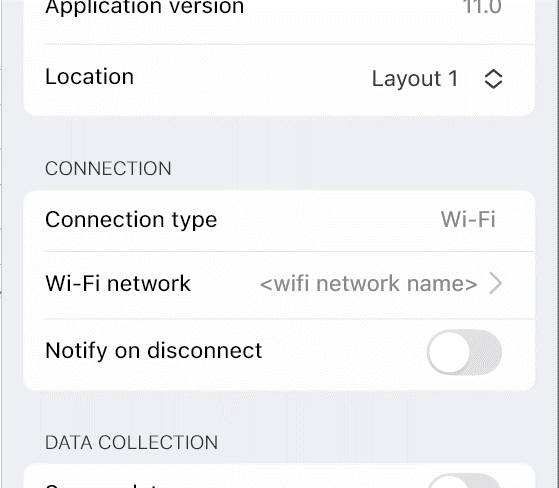
The final step in configuring a gateway is selecting how it connects to the internet.
In the Cloud Gateway's properties, the connection method is configured under the Connection section:
- Ethernet: If an active Ethernet cable is connected, the gateway connects automatically without requiring additional setup.
- Wi-Fi network: If no Ethernet connection is present, select a Wi-Fi network manually.
- The connection method can be updated at any time.
Changing the Internet Connection Method
Switching from Wi-Fi to Ethernet:
- Connect an active Ethernet cable to the Cloud Gateway. The device switches to Ethernet automatically.
Switching from One Wi-Fi Network to Another:
- Unpair the Cloud Gateway from the network.
- Pair the gateway again.
- Select the new Wi-Fi network during setup.