Nearby devices list
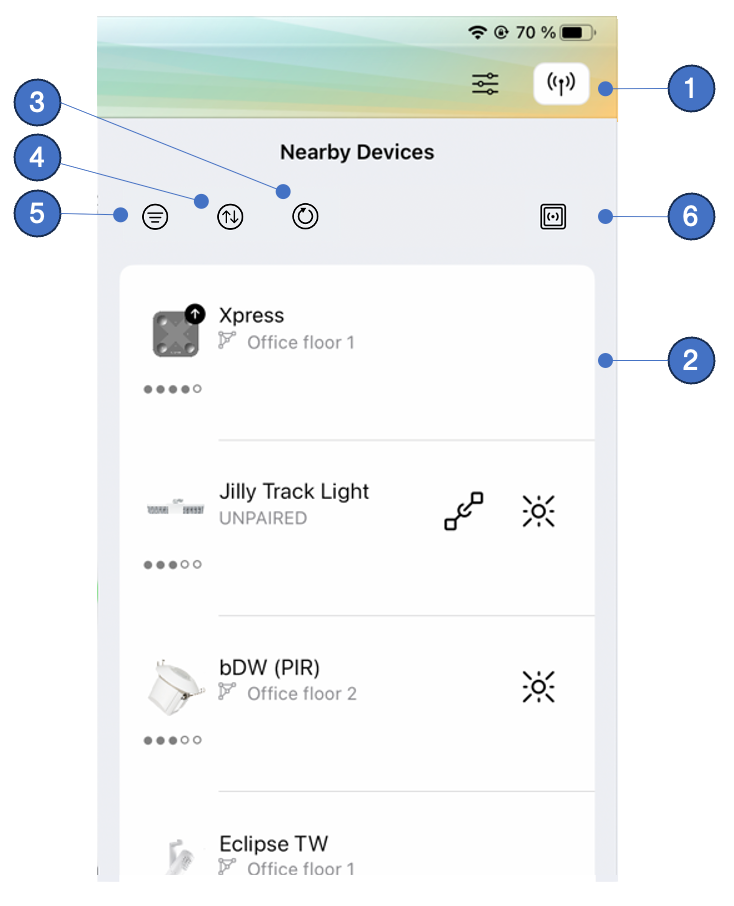
Casambi Pro for iOS can detect and list Casambi-enabled devices in physical proximity to the iOS device. These devices appear in the Nearby Devices pane. This feature is not available in Casambi Pro for Windows.
-
Nearby Devices Toggle: Opens or closes the Nearby Devices list using the antenna icon on the far right of the top toolbar.
-
Device List: Displays all detected, powered-on Casambi devices found during scanning. The list can be refreshed by pulling down on the screen or by tapping the Refresh button (3).
-
Refresh Button: Refreshes the list of nearby devices. Alternatively, perform a pull-to-refresh gesture directly over the list.
-
Sort Button: Sorts the list by device name, signal strength, or assigned network.
-
Filter button to set up filtering criteria to narrow down the displayed items in the list. The list can be filtered based on network, device manufacturer and fixture type.
-
Kinetic device button: Initiates pairing for kinetic devices like EnOcean switches via NFC. This button is available only on iPhone.
Battery powered devices (e.g. the Casambi Xpress switch) must be activated first before they can be detected and listed in Casambi Pro nearby device list.
Information in the Nearby Device List
-
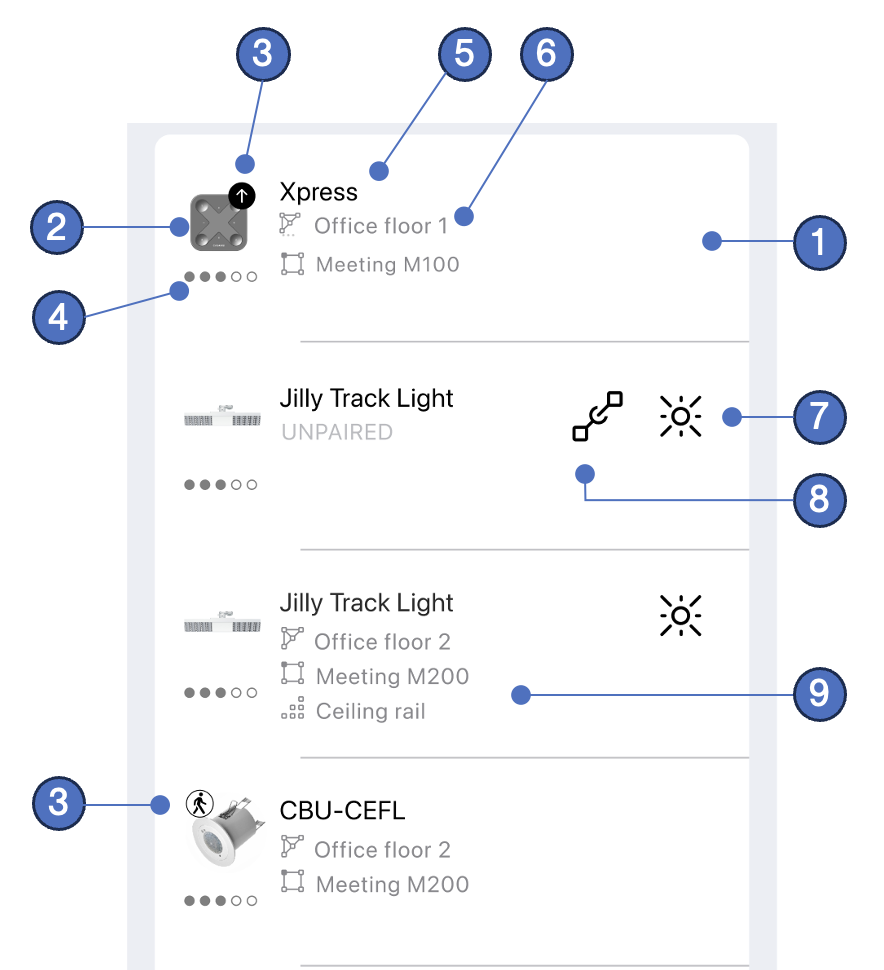
Device Row: Each detected device appears as an individual row. Tap a device row to view its detailed settings and properties.
-
Device Icon: Displays the fixture icon defined in the device's fixture profile by the manufacturer.
-
Firmware Update Badge: An arrow badge indicates that a firmware update is available for the device.
-
Signal Strength Indicator: Shows the Bluetooth signal strength (RSSI). Circular dots indicate standard Casambi devices, while square dots indicate Long Range models.
-
Device Name: The configured name or model of the device.
-
Network Status / Name: Shows the name of the network the device belongs to, or UNPAIRED if it is not assigned to any network. If the device belongs to a network for which you lack access rights, it displays as PAIRED instead of revealing the network name.
-
Identify Button: Flashes/blinks the luminaire to help physically identify it. This button is available only for lighting fixtures.
-
Pair Button: Initiates pairing for an unpaired device. This link icon is visible only on unpaired devices.
-
Device location: Space and luminaire group where the device is located in the project. The group is shown only for luminaires.