Networks
Overview to Casambi Pro networks
To enable both pre-configuration (pre-commissioning) and easy commissioning of Casambi networks, the Casambi Pro is based on the idea where not only the control configuration but also networks are first created as virtual objects. During the commissioning phase, these virtual networks convert into standard Casambi mesh networks as physical devices are paired using Casambi Pro for iOS.
- Network Creation: Virtual placeholder networks can only be created using Casambi Pro for Windows.
- Network Limits: There is no limit to the number of networks within a project. However, as with standard Casambi setups, an individual network created in Casambi Pro supports a maximum of 250 devices.
- Device Pairing: Physical devices can only be paired to networks using Casambi Pro for iOS.
- Firmware Compatibility: Networks created with either the Casambi App or Casambi Pro run on Casambi Evolution firmware and compatible devices. The Classic firmware is not supported.
- Network Activation: A virtual network converts into an active Casambi mesh network as soon as the first physical device (luminaire or controller) is paired to it.
- Space Linking Requirement: To pair devices directly to spaces and groups, each space must first be linked to a network. Spaces can be linked via the space properties menu in either Casambi Pro for Windows or Casambi Pro for iOS.
Networks panes in the user interfaces:
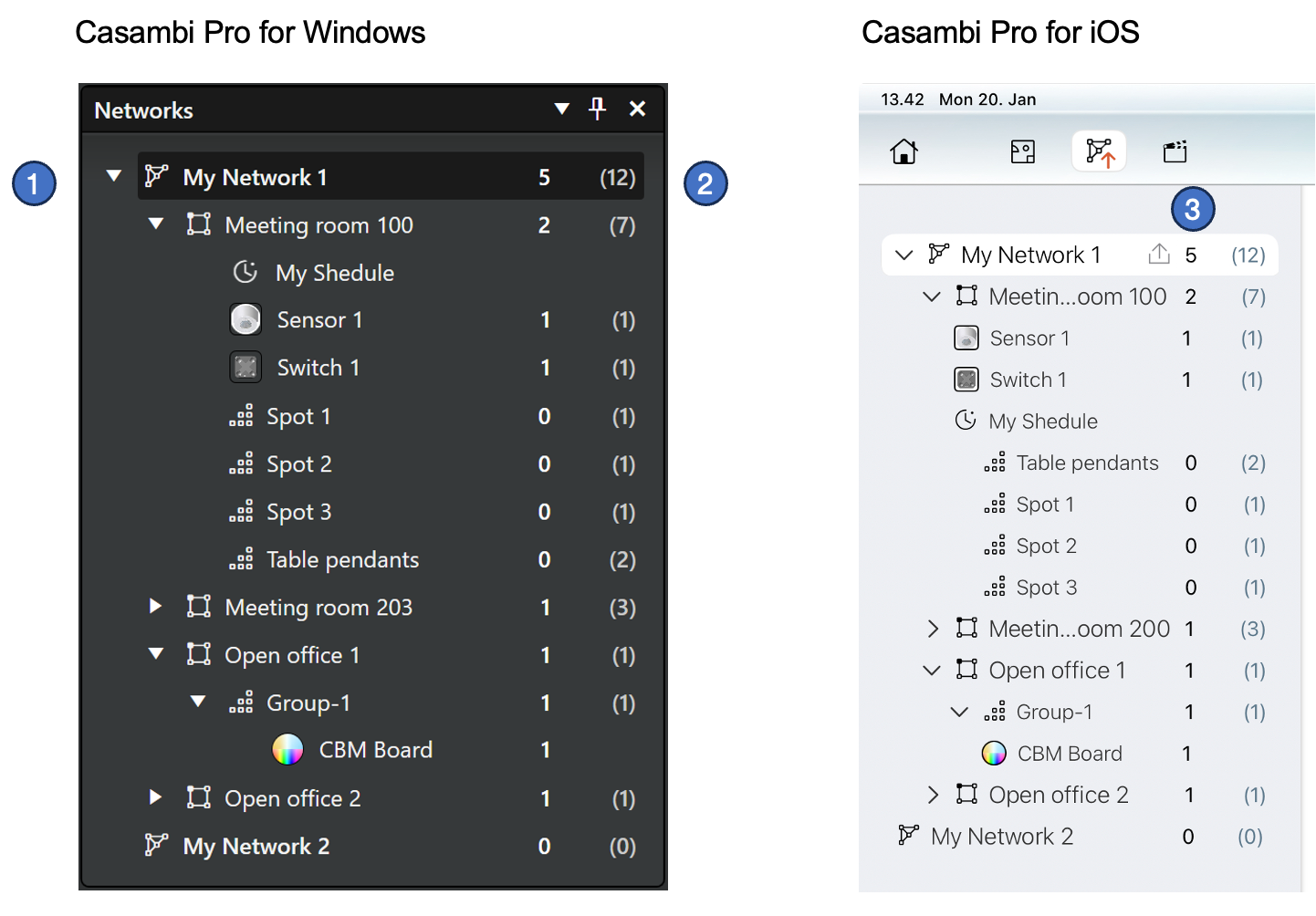
- The Networks pane lists the networks in the project and the spaces, luminaire groups and devices which belong to them.
- When a network row in this list is selected, all spaces which belong to the network are highlighted with green colour on the currently visible layout.
- Each row displays both the number of actual devices and number of estimated devices (in brackets). The network, space and luminaire group rows show the sum of devices under them.
- On Pro for iOS, a triangular indicator is displayed when there are new changes in the configuration which have not yet been uploaded to the actual mesh network.
See more information in the Pairing devices to networks page.
Network Sizing & Capacity Planning
When designing a project in Casambi Pro, planning network boundaries properly is essential for fast response times and long-term reliability. A single Casambi Evolution network supports an absolute hard limit of 250 devices under any circumstances. However, operating near this limit is not recommended.
Risks of Overloaded Networks
A Bluetooth Low Energy (BLE) mesh network shares radio bandwidth among all participating nodes. As the number of devices increases, mesh communication traffic multiplies. Overloading a network can lead to:
- Increased latency: Noticeable delays between toggling a switch or triggering a sensor and the luminaires responding.
- Packet collisions: Lost radio packets requiring automated retransmissions, which congests the mesh further.
- Reduced reliability: Sporadic missed commands during peak usage hours (e.g., broad daylight-sweep adjustments or scheduled scenes).
- Zero expansion headroom: Inability to add extra sensors, switches, or fixtures later without splitting and reconfiguring the network.
Determining Required Networks
Follow these steps to evaluate how many networks a project requires:
- Calculate the total node count: Sum the estimated number of luminaires and all controllers (switches, sensors, relays, and gateways). Every physical Casambi-enabled unit counts as one node.
- Account for physical and architectural boundaries: Split networks along logical spatial divisions (such as floors, wings, or independent tenant suites) rather than packing devices into a single network to fill capacity.
- Match network modes to zone requirements: Casambi Pro provides three network modes tailored for distinct throughput, range, and capacity requirements:
| Network Mode | Radio Speed | Recommended Max Nodes | Absolute Limit | Best Suited For |
|---|---|---|---|---|
| Better performance | 2 Mbit/s | 200 nodes | 250 nodes | High-density indoor networks with heavy sensor/switch traffic; shorter range. |
| Balanced | 1 Mbit/s | 125 nodes | 250 nodes | Standard indoor networks with moderate traffic. |
| Long Range | 0.5 Mbit/s | 60 nodes | 250 nodes | Outdoor spaces or distributed fixtures requiring maximum range. |
Keep device counts below the recommended threshold for your selected mode whenever possible. Multiple smaller networks connected via site gateways perform significantly faster and maintain clearer mesh traffic than one saturated network.
Network Congestion Warnings in Casambi Pro for Windows
Casambi Pro for Windows monitors your planned device counts against the recommended thresholds for your selected network mode. Status indicators appear in real time within the Networks list and the Properties pane under Estimated device issues:
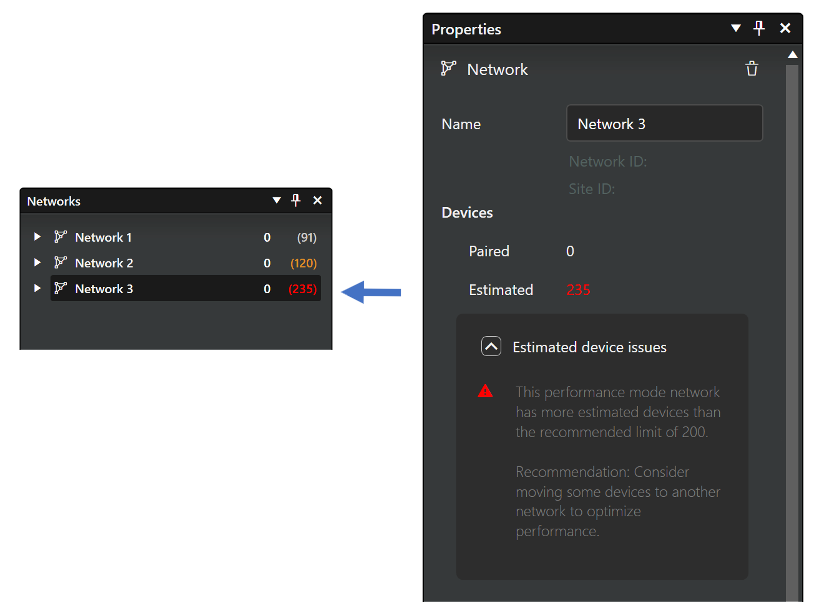
- White Text (Within Recommendation): Device count is within recommended operational limits. No warning banner is displayed.
- Orange Text / Yellow Notice (Approaching Limit): The estimated device count is nearing the recommended limit for the selected network mode (for example, approaching 125 nodes in Balanced mode). The pane advises moving devices to another network to protect performance.
- Red Text / Red Warning (Exceeded Recommendation): The planned device count exceeds the recommended operating limit (for example, surpassing 200 nodes in Better Performance mode). Network latency may increase. Devices should be redistributed to an adjacent network.
- Red Text / Red Error (Absolute Maximum Exceeded): The estimated node count exceeds the 250-device hard limit. A network cannot be deployed with more than 250 nodes under any conditions; the network must be split before proceeding.
Network size warnings will initially be available only in Casambi Pro for Windows (October 2026 version). This feature will be added to Casambi Pro for iOS at a later date.
Casambi hardware and protocol architecture do not allow more than 250 nodes in a single network under any circumstances. If your planned network reaches or exceeds 251 devices, you must create an additional network and reassign fixtures.
Important notes about networks
-
Configurations of networks created with Casambi Pro cannot be changed with the standard Casambi App.
- If the network configuration is changed outside of Casambi Pro, the project in Casambi Pro does not get information about the configuration changes.
-
Networks created with Casambi Pro can be opened with the Casambi App, but only for controlling.
- If a Pro-created network is opened with Casambi App, the user can use the app for controlling luminaires or activating scenes. Configuration changes are not possible.
- Note also, that when opening a Casambi Pro network with the Casambi App, the user experience is not optimal as the standard Casambi App is not built for displaying Pro networks. Its user interface does not support layouts (floor plans) or usage of spaces and space templates. Due to this, the user interface may be filled with numerous similar objects and navigation may be difficult.
-
Pairing devices to networks can be done only with Casambi Pro for iOS.
-
Unpairing devices from networks can be done only with Casambi Pro for iOS.
- Technically it is possible use the Casambi App for unpairing a device from a network created with Casambi Pro, but this is not recommended. If a device is unpaired with the standard Casambi App, the project in Casambi Pro does not get information that the unpaired device does not belong to the network anymore. Thus, Casambi Pro will still show the device as part of the network.
-
Casambi Pro for Windows cannot be used for pairing or unpairing devices to/from Casambi networks.