Network properties
Network properties are displayed in the Properties pane when a network is selected in the Networks pane.
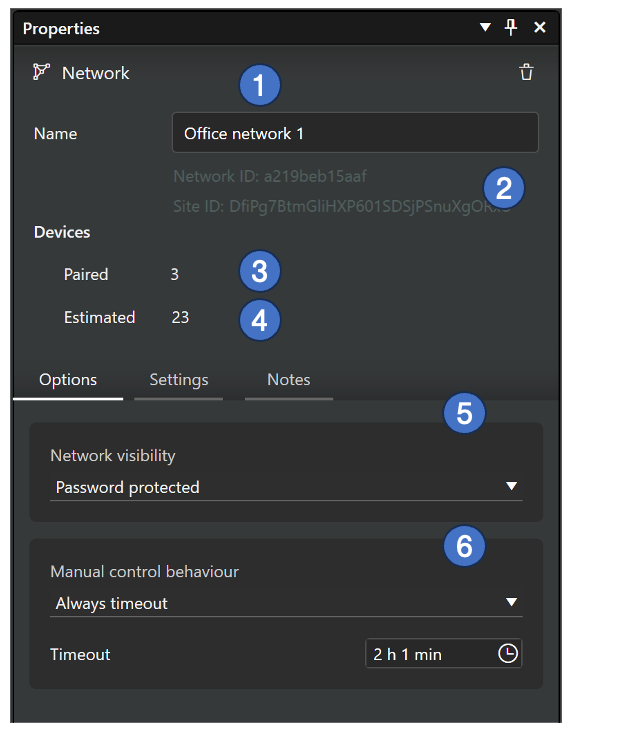
General properties
- Name of the network.
- Network and Site IDs.
- Number of paired devices in the network.
- Estimated number of devices in the network.
Options tab
- Network visibility settings
- Password protected: Only administrators with the password can control the networks (but not configure). Password is set in Casambi Pro for iOS.
- Open: Everyone can control the network (but not configure)
- Manual control behaviour options
- Always timeout + timeout time setting
- Timeout if automation waiting + timeout time setting
- Do not timeout
Settings tab
Performance & security settings
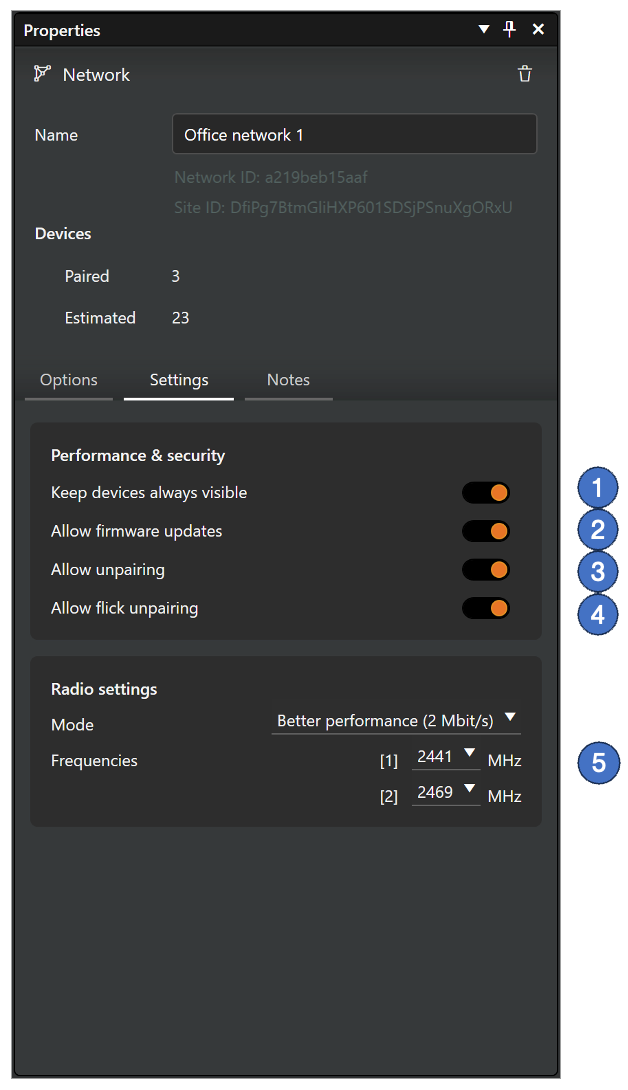
-
Keep devices always visible
- Hides or displays devices within the Nearby Devices list.
-
Allow firmware updates
- Allows or prevents firmware updates, even when a new firmware version is available.
-
Allow unpairing
- Allows devices to be unpaired from a network using the Unpair device option in the device's settings within the Properties pane.
-
Allow flick unpairing
- Allows devices to be unpaired by using the power cycling process (usually by flicking a wall switch off and on) to unpair a device also with the Casambi App. This process is used when you need to unpair a device belonging to a network to which you do not otherwise have access.
Note: If a device is unpaired using the standard Casambi App, it will still appear in the Casambi Pro project because Casambi Pro is not notified of external unpairing events. In this scenario, you must manually remove the device from the project in Casambi Pro using the Remove option in the device's properties.
Radio settings
- Mode and Frequencies settings. These can be changed if there are no paired devices in the network.
Special network settings only in Pro for iOS
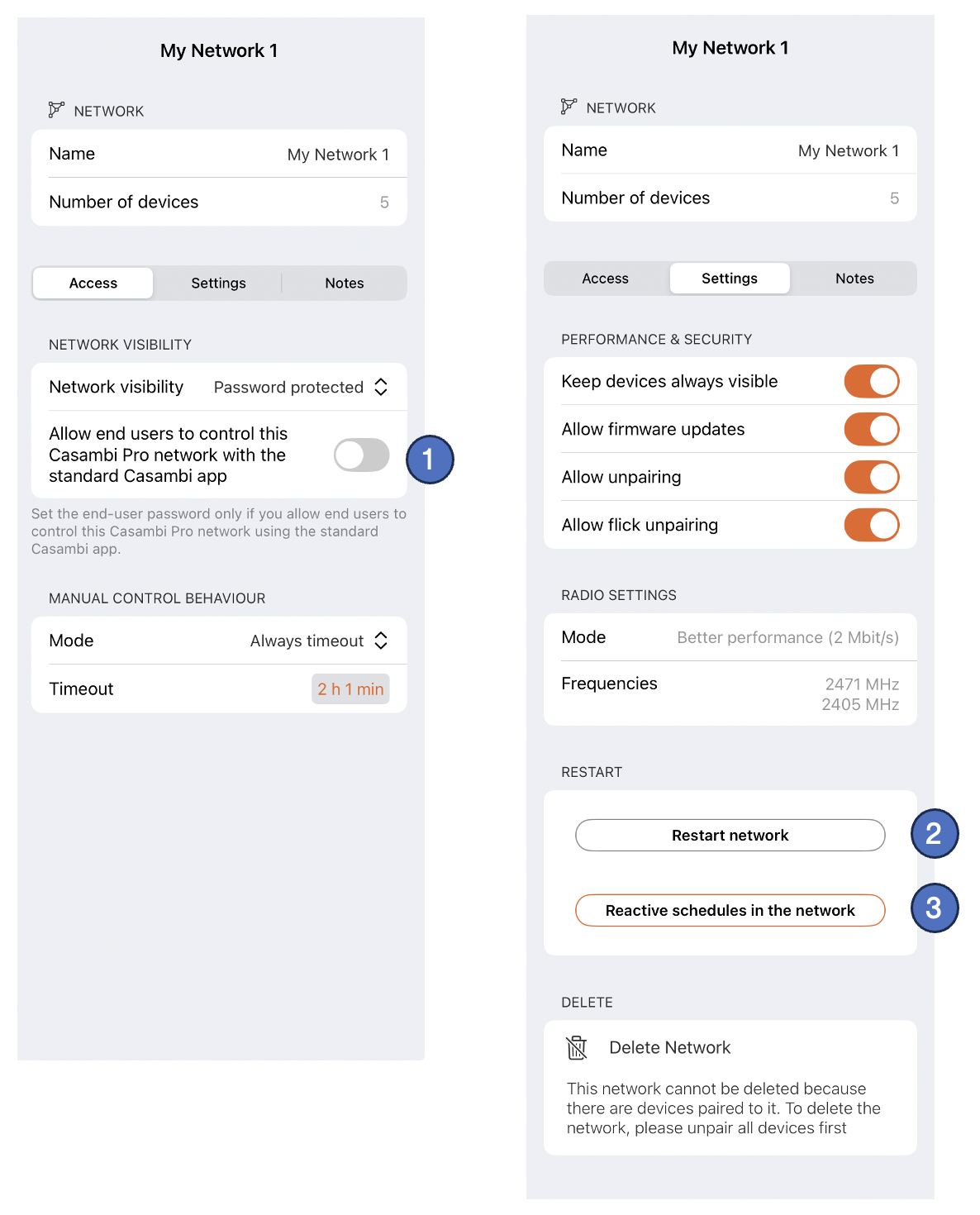
-
Password setting for networks if visibility is set to “Password protected”.
-
The Restart Network command can be used to restart the control hierarchy and mesh network.
-
The Reactivate schedules in the network command restarts active schedules across the network. Use this command in the following situations:
- Configuration Updates: The network configuration is updated while schedules are running. Network updates stop active schedules, requiring them to be reactivated manually.
- Network Restarts: The network has restarted (e.g., after a power outage).
- State Synchronization: You want to immediately synchronize schedules to the state that should currently be active.
Linking spaces to networks
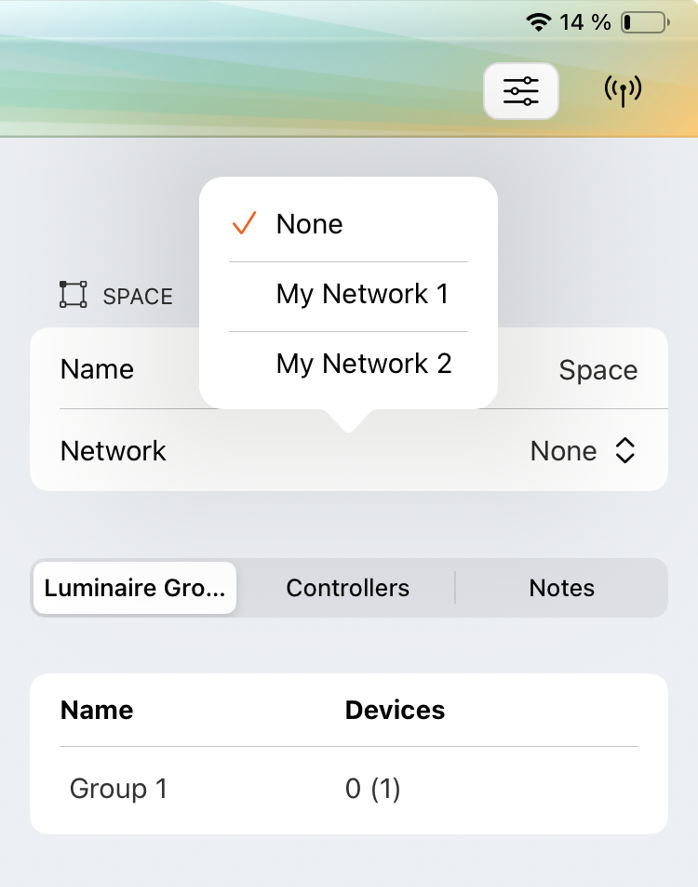
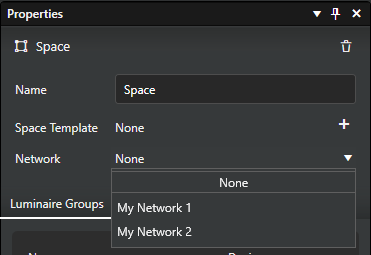
Before devices can be paired into a space (controllers) or groups (luminaires), the space must belong to a network. A space can be added to a virtual network either already on the configuration design (pre-commissioning) phase or later into a real network with real devices.
To add a space to a network, select a space and select a network for it in space’s property pane:
Casambi Pro for Windows
Casambi Pro for iOS