Updating confiuration to networks
Updating configuration to networks
If new configuration changes have been made in a Casambi Pro project, they need to be uploaded to the network(s) using the iPad. Please note that the configuration changes can be made both with the Windows and the iPad versions of Casambi Pro. However, only the iPad version can be used for uploading the new configurations to the networks.
Principle for changing and updating configurations of existing networks

Update configuration UI in Pro for iOS
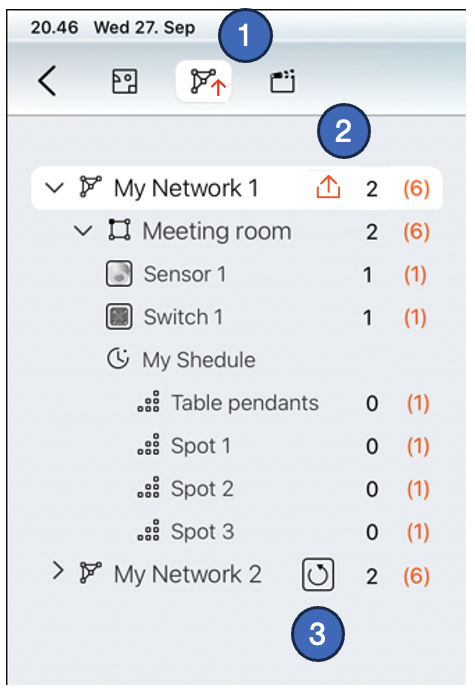
New configuration changes which are not yet uploaded to networks are indicated in the Pro for iOS UI by red and grey triangular icons. The circular arrow button allows the user to reload the configuration to the network.
-
The Networks toggle button in the top toolbar shows an animated arrow if there have been any new configuration changes made, and those have not yet been uploaded to the networks in this project.
-
In the Network list, there is a red or grey arrow icon next to the network name if there are some pending changes that have not yet been uploaded to this network. When you are within Bluetooth range of a network and want to upload new configurations to it, tap the red arrow next to the network name to upload the latest configuration to the network.
If the icons are grey, there are configuration changes pending for upload, but the network cannot be reached at that moment.
-
The button with a circular arrow can be used to reload the configuration to the network.
Please note, that when new configuration is loaded to the network, all schedules in it are stopped. They can be reactivated from the network properties in Casambi Pro.
To make pairing faster, the network configuration is not automatically refreshed to the entire network when each device is paired. Therefore, once the pairing operation is finished, it is recommended to update the latest configuration to the network manually by pressing the Update button in the network list.