Circadian profiles in scenes
A circadian profile can control scene's dimming and/or colour temperature values over time. Circadian profiles are created at the project level and they can be linked to scenes in any network in the project.
See the Circadian Profiles page to learn more how the profiles are created and managed.
Applying a circadian profile to a scene
Circadian profiles can only be applied to scenes. Therefore, create a scene before assigning a circadian profile to it.
- Windows
- iOS
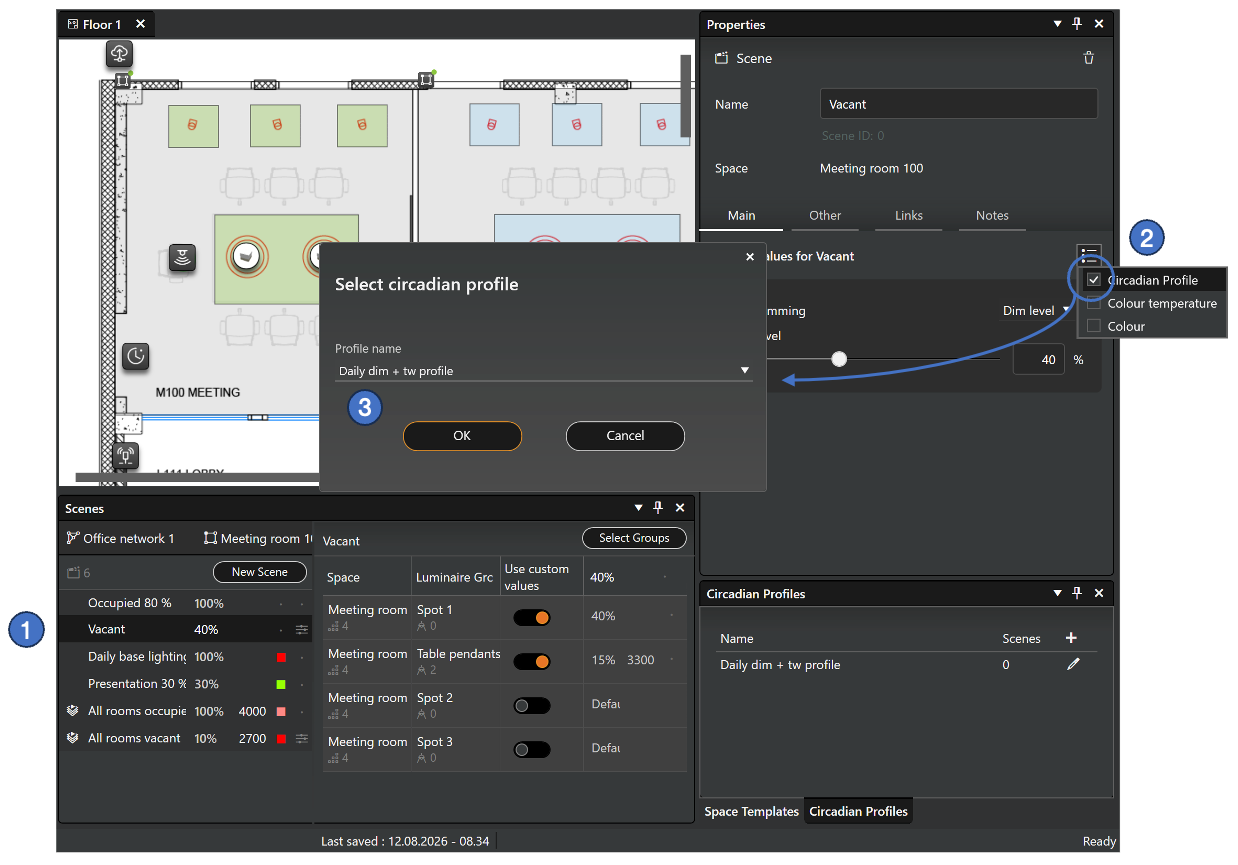
To apply a circadian profile in a scene:
- Select a scene by clicking the scene name in the Scenes pane.
- Select the Circadian Profile option in the Properties pane menu. A selection dialog is opened.
- Select a profile from the selection list in the dialog and click Ok.
- Profile is now applied and both the scene table and the scene property pane are updated (see the image below).
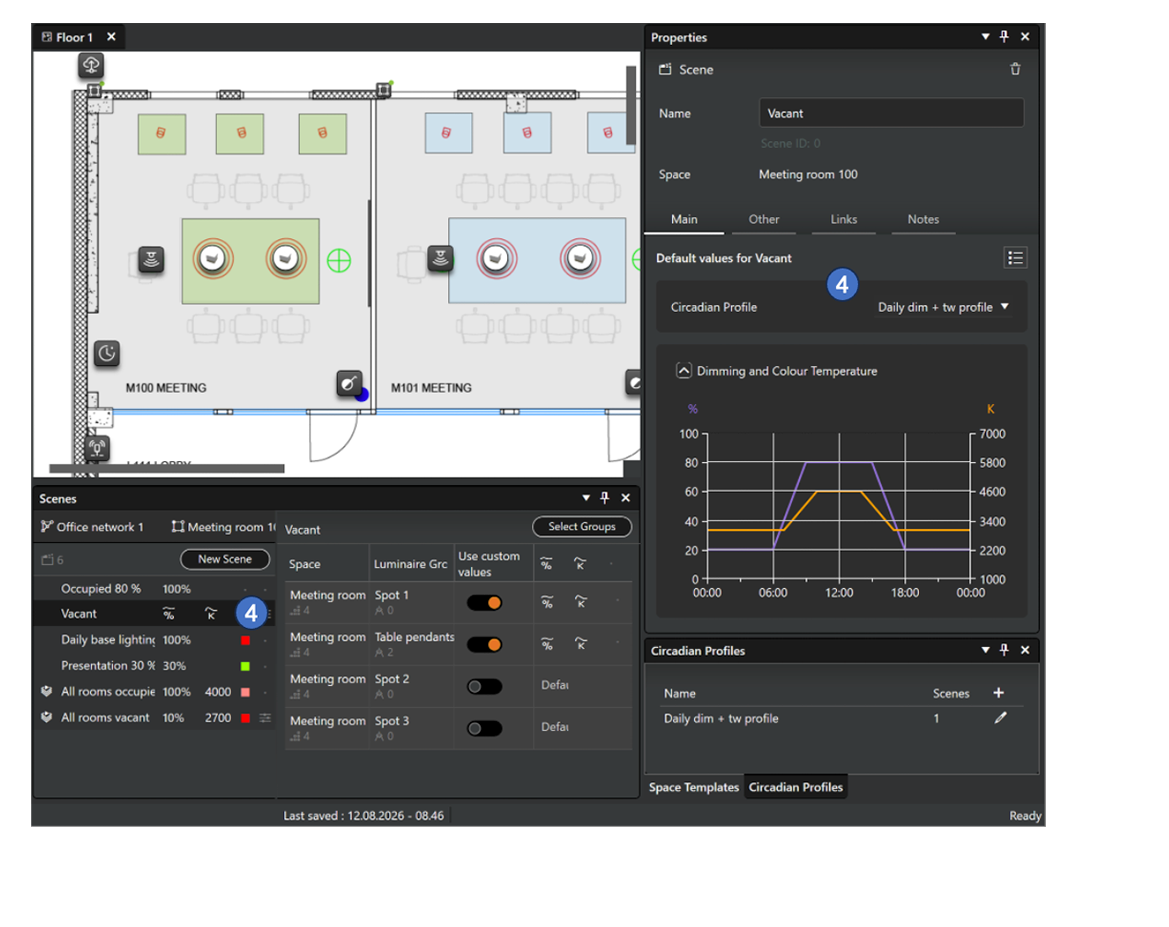
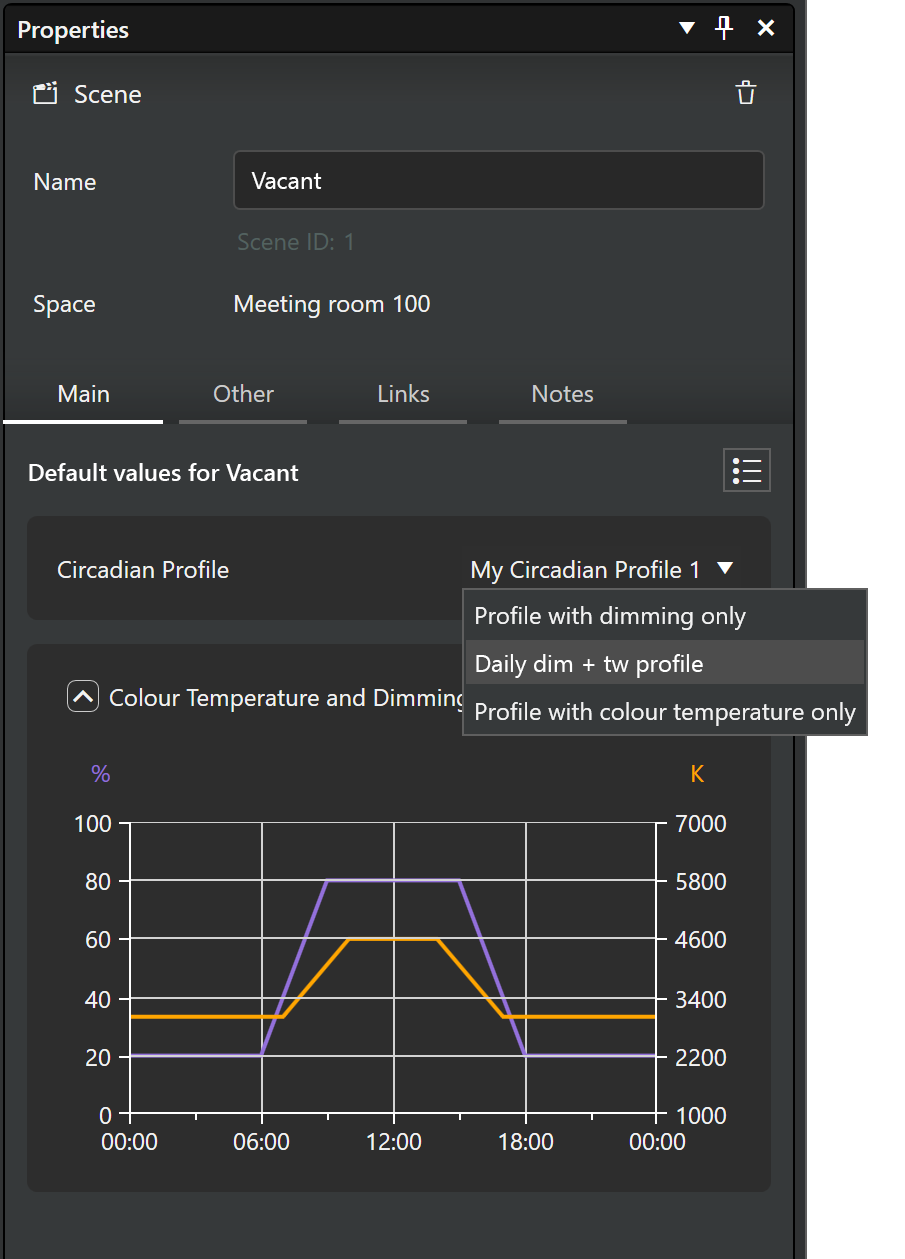
When a circadian profile is used to control a scene, the Properties pane displays a profile selection list along with a preview of the selected profile.
If a profile includes only a dimming curve or only a colour temperature curve, previews are displayed only for that property. For example, a scene can use a static dimming value while applying a circadian profile solely to control colour temperature.
The circadian profile always applies to all luminaire groups in the scene. Therefore, it is not possible to apply a separate profile to a single group by using local values in the scene properties.
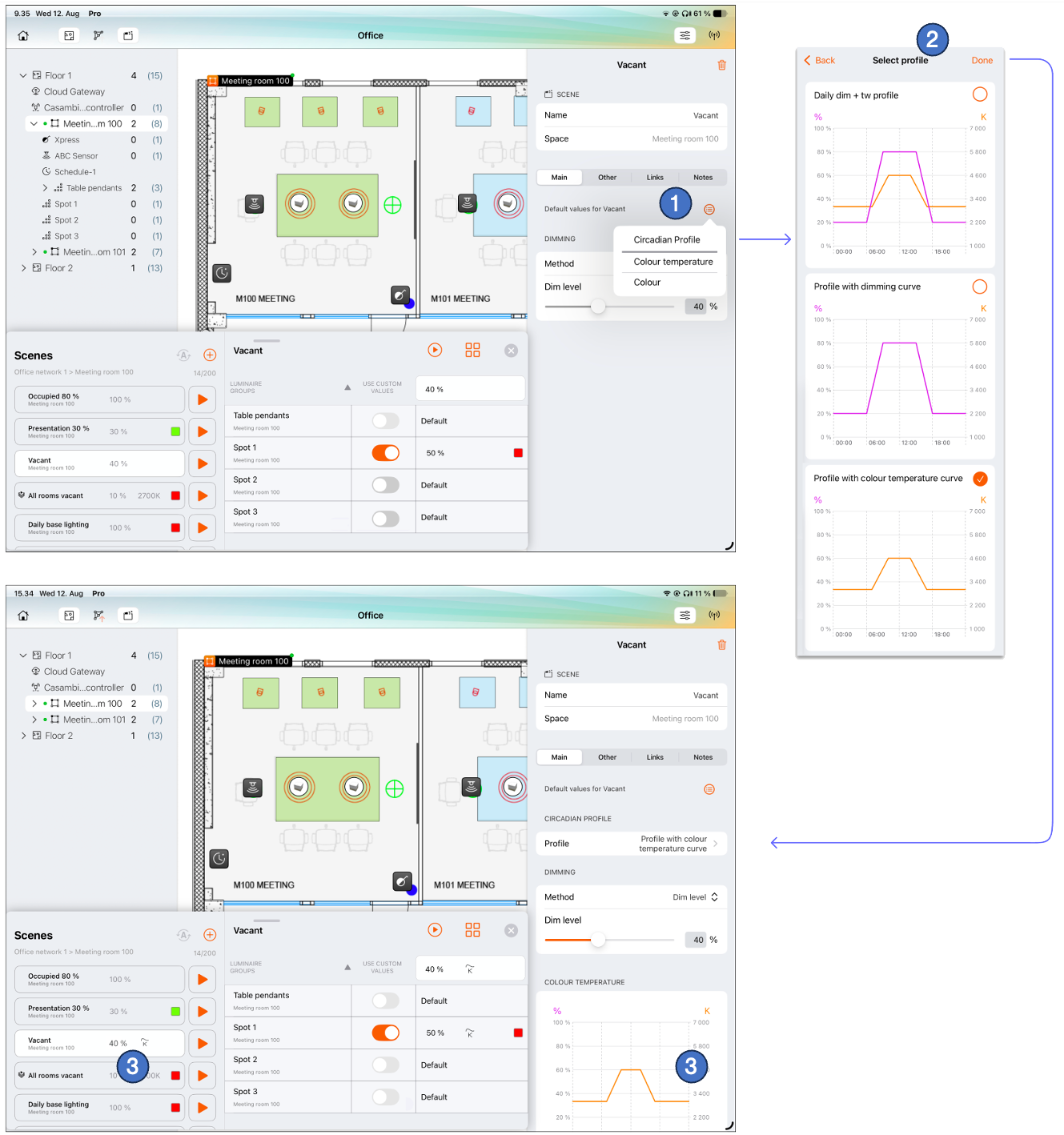
On iOS, applying a circadian profile works the same way as on Windows.
- Activate Circadian profile from the property menu
- Select preferred circadian profile
- When the profile has been applied, the scene table and the scene property pane are updated. If the selected profile has curves for both dimming and colour temperature, both curves are applied.
Removing a circadian profile from a scene
A circadian profile is removed from a scene by unchecking the Circadian profile option from the scene property menu.