Nearby devices list
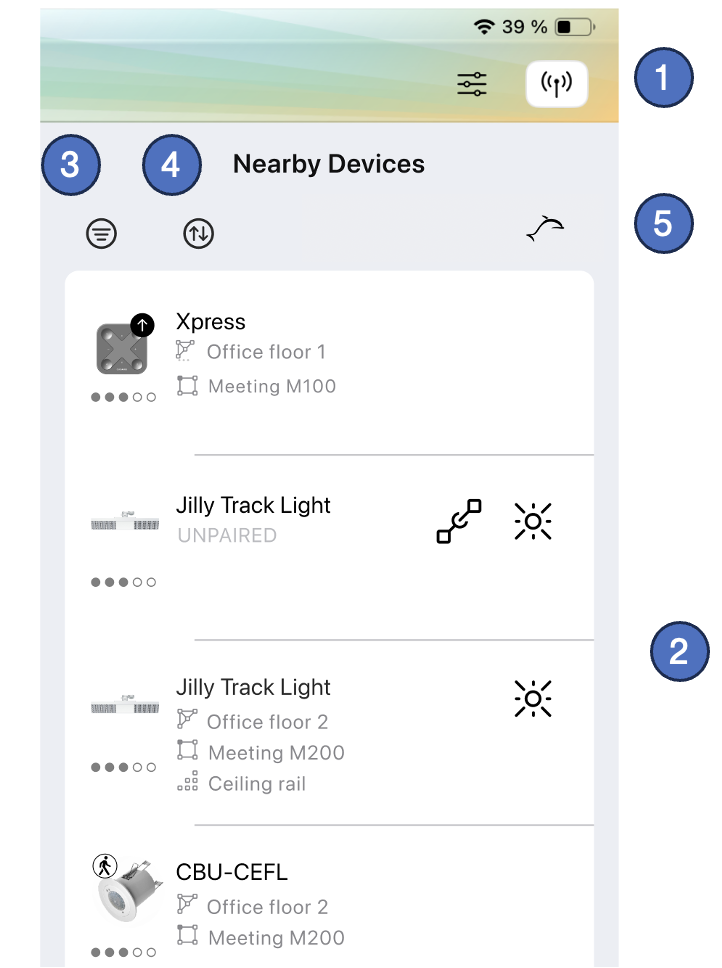
Casambi Pro for iOS can detect and list Casambi enabled devices which are near to the iOS device where the user is running the Pro application. The devices are listed in the Nearby Devices pane. This list is not available on Pro for Windows.
-
Nearby devices list can be toggled open/close using the button at the right end of the top toolbar
-
When the list is opened, Casambi Pro scans the nearby environment, and then lists all detected Casambi enabled devices in the view. The list can be updated by dragging it down with finger.
-
Filter button to set up filtering criteria to narrow down the displayed items in the list. The list can be filtered based on network, device manufacturer and fixture type.
-
Sort button to sort the list by the name of the device, by its signal strength or by network.
-
EnOcean button for pairing EnOcean devices. This button is available only on iPhone.
Battery powered devices (e.g. the Casambi Xpress switch) must be activated first before they can be detected and listed in Casambi Pro nearby device list.
Information in the nearby device list
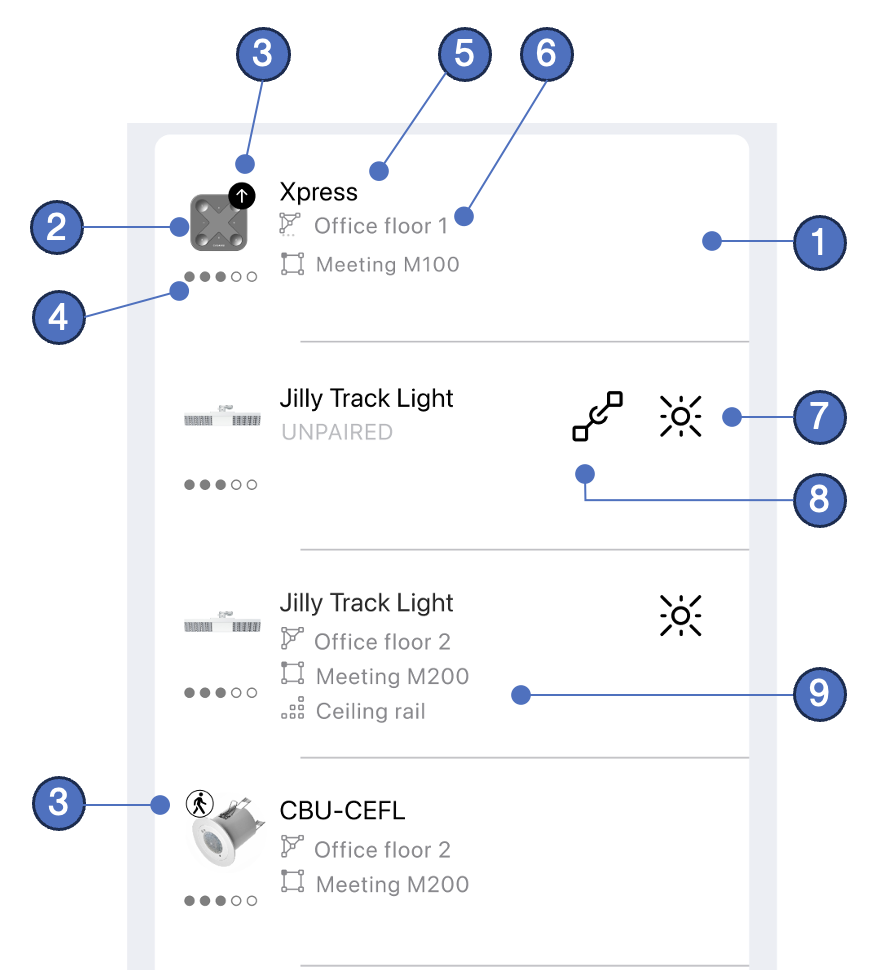
- Each device is presented as a list row. Detailed device details can be accessed by tapping a device row.
- Device icon set in its fixture profile by the manufacturer/vendor.
- A round arrow badge indicates that there is a firmware update available for the device.
- Signal strength indicator. Circles are used for standard Casambi enabled devices, squares for the long range versions.
- Device name.
- Network information. Here is either the network name where the device belongs to, or text “UNPAIRED” if the device is not in a network. If you do not have access rights to a nearby network, the network name for the device is "PAIRED" instead of the actual network name.
- Identify button. Pressing this makes the luminaire blink so it can be identified. This button is available only for luminaires.
- Pair button. Visible only for unpaired devices.
- Space and luminaire group where the device is located in the project. The group is shown only for luminaires.