Scene controls
Dimming control in a scene
The dimming control is always part of a scene. There are three methods to control dimming:
- Static dimming level (default)
- Daylight control
- Circadian profile with dimming curve
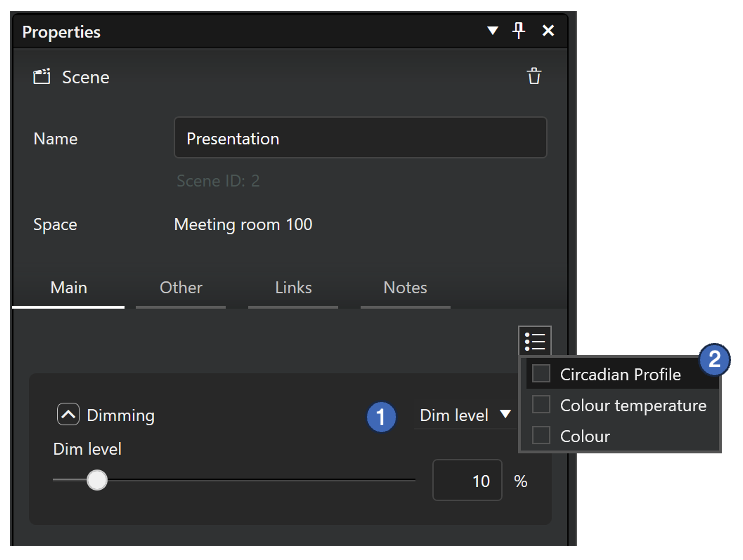
Selecting method for dimming control:
-
Selection between static dim level and daylight controlled dimming is done in the dimming section of the property pane.
-
If a circadian profile is used in the scene, it is activated from the property menu. In this case, if the selected profile has a dimming curve, it will control the dimming and the other dimming options are not available.
Static dimming level
By default, every scene has a set dim level control. The default value for dimming is 100%. If needed, each group can also have their own dimming levels (local values).
Daylight control
Luminaire dimming can be controlled also with a daylight sensor controlled scenes. These scenes utilize information provided by a lux sensor, to automatically adjust the scene lighting level based on the amount of light available.
In Casambi Pro, daylight control uses the Constant Light principle (called “Closed Loop” in the Casambi App). In Constant Light mode, the selected lux sensor continuously adjusts the luminaires in the active scene to maintain the target illuminance level. This is achieved through a feedback loop, where the sensor monitors changes in light output and responds accordingly. The sensor measures combined light from the scene’s luminaires and natural daylight in the space.
Circadian profile controlled dimming
When there are circadian profiles defined in the project, they can be utilized in a circadian scene. When applied to a scene, depending on what curves the profile has, the colour temperature of tuneable white luminaires and their dimming level will both change automatically over time according to the profile graph settings.
See the Circadian Profiles page to learn more how the profiles are created and managed.