Network properties
Network properties are displayed in the Properties pane when a network is selected from the Networks pane.
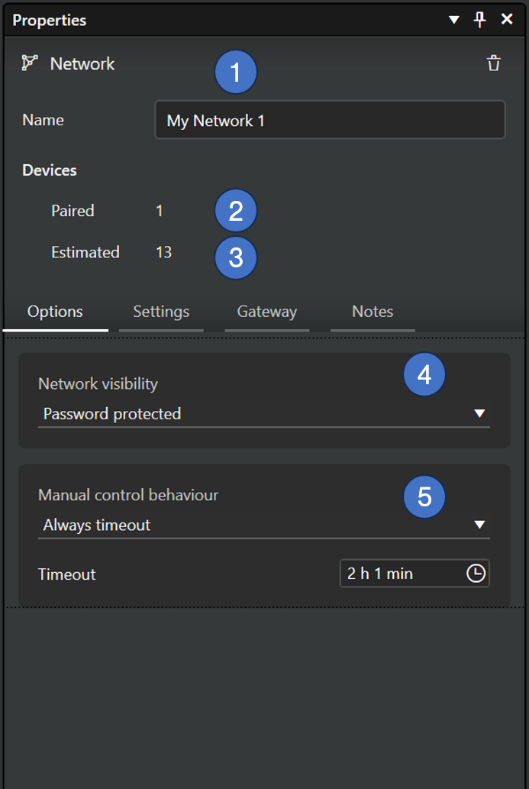
General properties
- Name of the network
- Number of paired devices in the network.
- Estimated number of devices in the network.
Options tab
- Network visibility settings
- Password protected: Only administrators with the password can control the networks (but not configure). Password is set in Casambi Pro for iOS.
- Open: Everyone can control the network (but not configure)
- Manual control behaviour options
- Always timeout + Timeout setting
- Timeout if automation waiting + Timeout setting
- Do not timeout
Settings tab
Performance & security settings
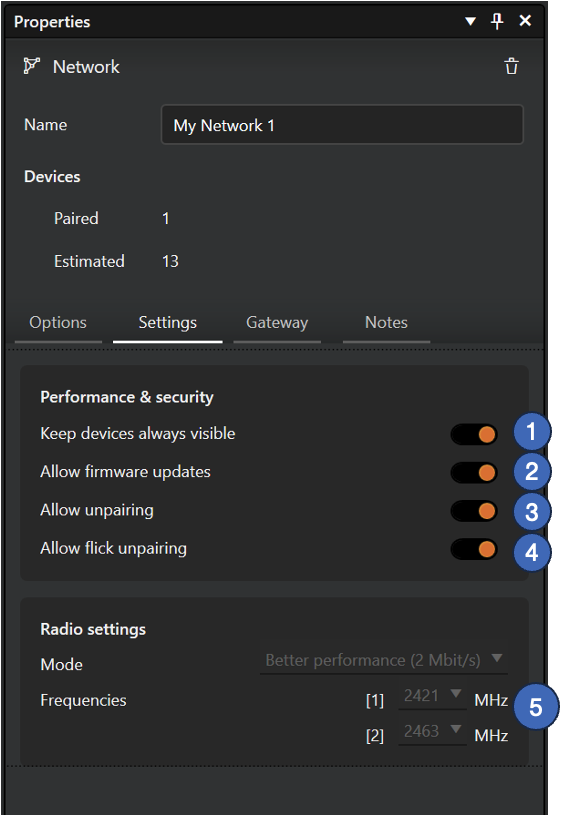
- Keep devices always visible
- Hides or displays devices within the Nearby Devices list.
- Allow firmware updates
- Allows or prevents firmware update, even if a new firmware version is available.
- Allow unpairing
- Allows devices to be unpaired from a network using the Unpair device option within a device’s own settings in the property pane.
- Allow flick unpairing
- Allows devices to be unpaired by using the power cycling process (usually by flicking a wall switch off and on) to unpair a device also with the Casambi App. This process is used when you need to unpair a device belonging to a network to which you do not otherwise have access.
Radio settings
- Mode and Frequencies settings. These can be changed if there are no paired devices in the network.
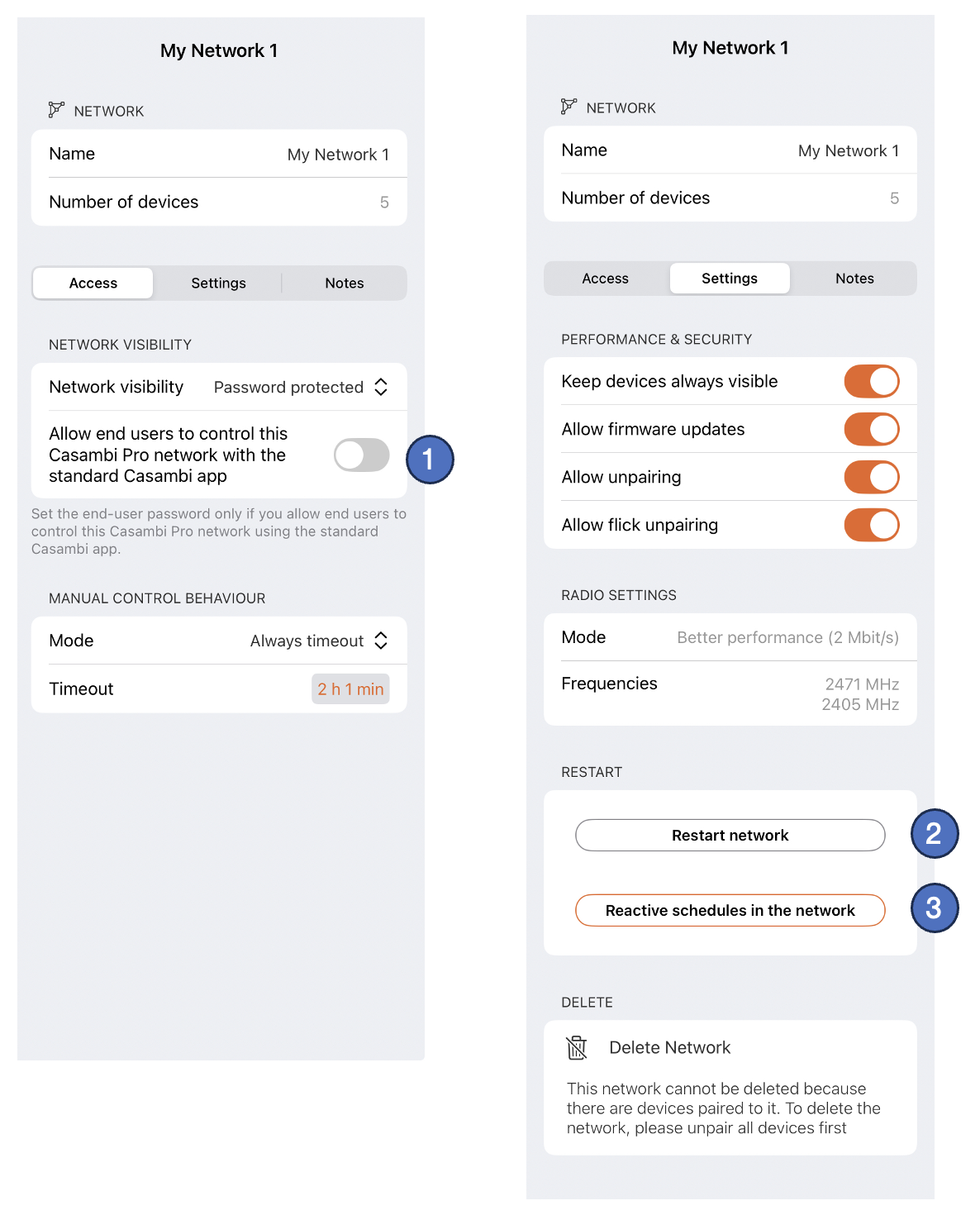
Special network settings only in Pro for iOS
-
Password setting for networks if visibility is set to “Password protected”.
-
The Restart Network command can be used to restart the control hierarchy and mesh network.
-
The Reactivate schedules in the network command can be used to restart schedules in the network. This is needed when
- The network configuration is updated while schedules are active. When network is updated, the schedules will stop running and need to be reactivated manually.
- The network is restarted, e.g. after power outage.
- If you want schedules to refresh to a state that would currently be active.
Linking spaces to networks
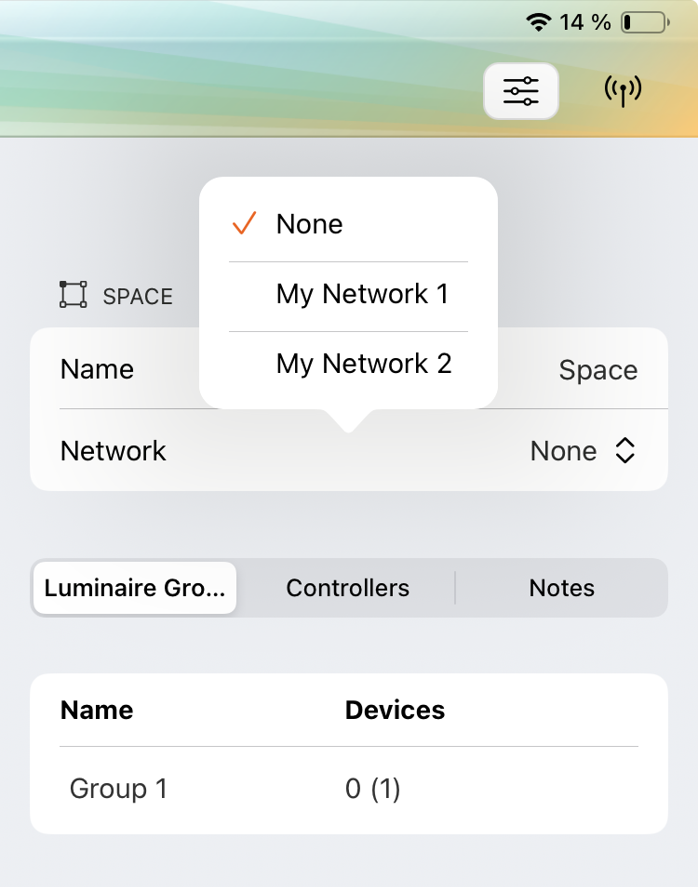
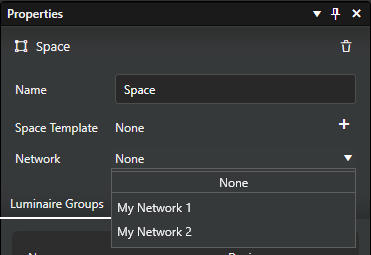
Before devices can be paired into a space (controllers) or groups (luminaires), the space must belong to a network. A space can be added to a virtual network either already on the configuration design (pre-commissioning) phase or later into a real network with real devices.
To add a space to a network, select a space and select a network for it in space’s property pane:
Casambi Pro for Windows
Casambi Pro for iOS