Using the space template
When a space is created using a space template, it inherits its composition and control logic from the template used. The positioning of elements and the shapes of the space and its group areas are fully editable, but the control logic continues to follow the template's setup.
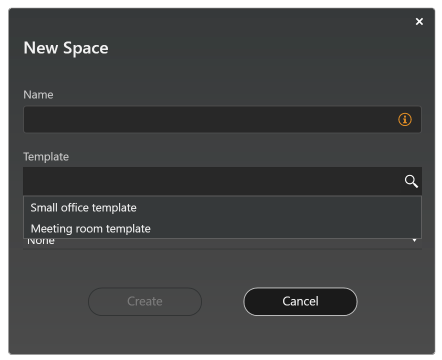
Creating a space based on a template:
- Create a space using one of the following methods:
- Click the Space tool icon in the Home ribbon and draw a space on the canvas.
- Right-click the layout row in Project Explorer and select New Space.
- Right-click the floor plan image in the layout view and select New Space.
- In the New Space dialog, enter a name for the new space and select a template.
- Click Create. The new space is created using the selected template, matching the size, shape, and contents of the template on the layout.
Learn more about how spaces are created in the Creating a space page.
After the new space is created, you can move, resize or edit the shape of it and also adjust the position of its child elements. However, if you want to change the element structure or control logic of a space linked to a template, you need to edit the template's logic in the Space Template editor.
If needed, you can also detach a space from its template, by using the Unlink button in the space properties.