Casambi DALI controller (Salvador)
Overview
Casambi Pro supports controlling wired DALI luminaires using Casambi DALI Controllers (the Casambi Salvador product family). Once commissioned, connected DALI luminaires appear and function within Casambi Pro identically to standard wireless Casambi Ready luminaires.
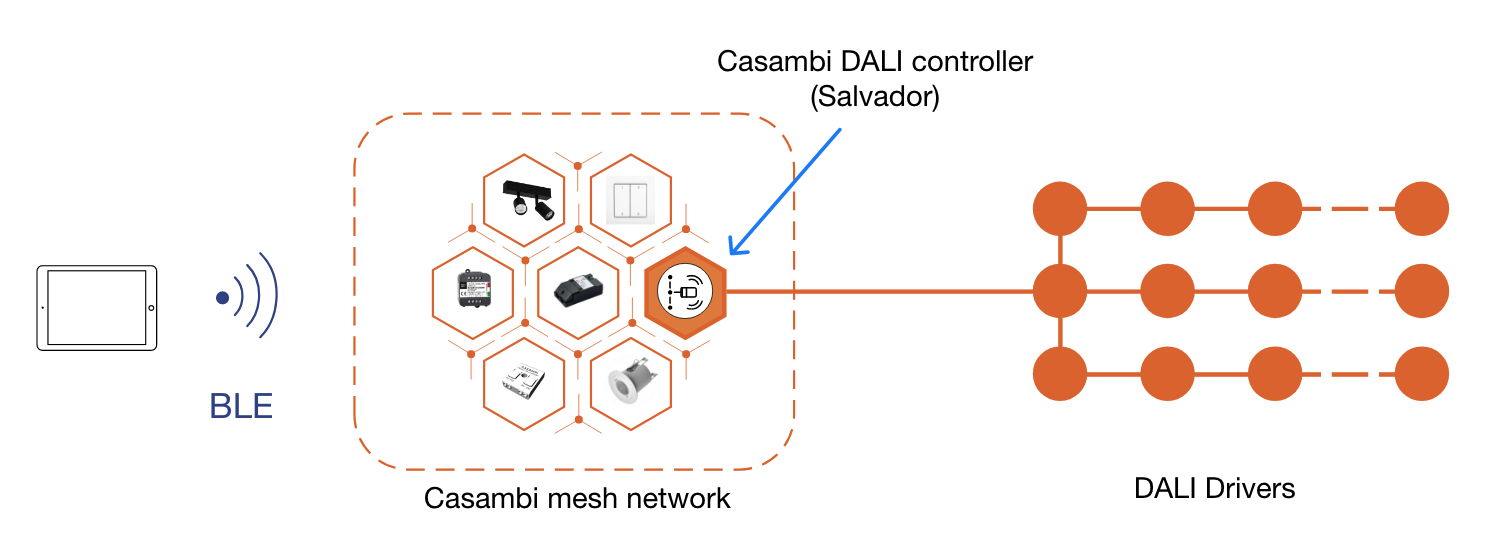
Commissioning and using a DALI Controller in Casambi Pro involves three key phases:
- Creating a DALI Controller placeholder in Casambi Pro for Windows.
- Pairing: The Casambi DALI controller is paired directly into the Casambi mesh network using Casambi Pro for iOS.
- DALI Driver Discovery: The paired DALI controller scans the DALI bus to detect connected luminaire drivers. The discovered luminaires are then mapped into the Casambi network via the controller.
The discovery process is explained in detail in the Pairing Casambi DALI Controllers guide.
For more technical specifications and product details on Casambi DALI Controllers, visit the Casambi Products web site.
Creating a Casambi DALI controller placeholder
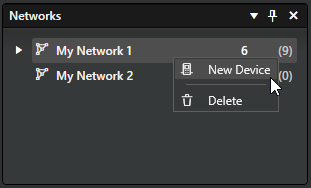
A network can contain multiple Casambi DALI controllers. Like switches, sensors, and cloud gateways, a DALI controller can be created in advance as a placeholder and later replaced by the physical Casambi DALI controller (Salvador) unit during commissioning.
To create a placeholder, right-click the network name in the Networks pane and select New Device.
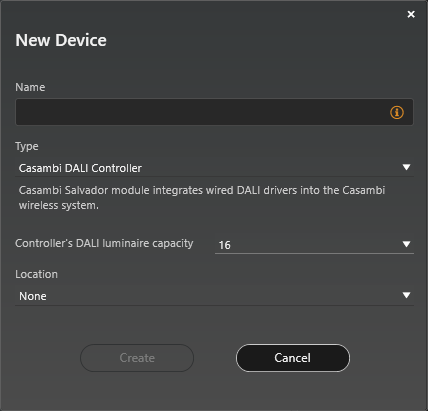
In the New Device dialog, make sure that the “Type” is Casambi DALI Controller, and then
- Enter name for the placeholder
- Select controller’s DALI luminaire capacity (16, 32 or 64)
- Select location (layout where the placeholder should reside)
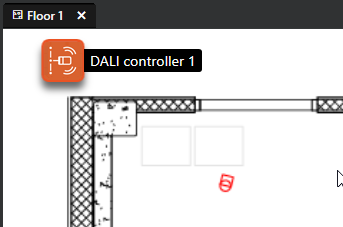
After clicking Create, the DALI controller placeholder appears in the top-left corner of the selected layout.
The placeholder can be freely moved to its target location within the floor plan. It can also be reassigned to a different layout by selecting a new location in the controller's properties.
The DALI controller's properties are accessible in the controller's properties pane.
DALI controller properties
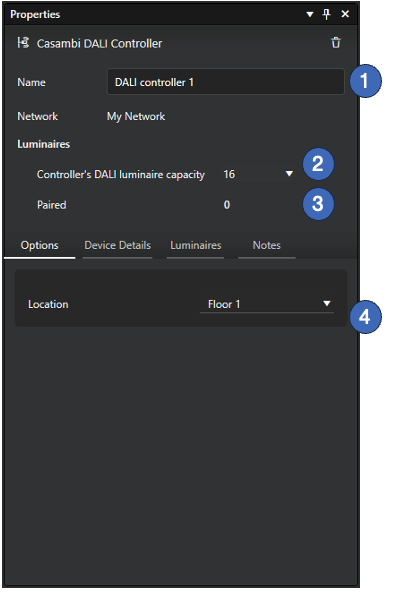
- Device Name: The assigned name of the Casambi DALI Controller.
- DALI Capacity: The maximum luminaire capacity supported by the controller model (Salvador models support 16, 32, or 64 DALI luminaires).
- Discovered Luminaires: The count of active DALI luminaires detected on the DALI line (shows 0 until the discovery scan is completed).
- Location: The layout assignment of the DALI controller element within the project. If moved to a different layout, the controller icon appears in the default top-left position of the target layout.
Once the physical Salvador unit is available, pair it to the network using Casambi Pro for iOS. For detailed pairing and connection procedures, see the next section.
Pairing a Casambi DALI Controller and Discovering DALI Units
For detailed instructions on pairing DALI controllers and discovering connected DALI luminaires, see Pairing DALI Controllers to Networks.
- A network can contain multiple DALI controllers. A Casambi mesh network supports up to 250 nodes:
- Each DALI controller (Salvador unit) counts as one network node.
- Each DALI luminaire discovered and mapped via the controller counts as one network node.
- DALI luminaire discovery can only be performed after the physical DALI controller has been paired to the network.
- Only DALI luminaires (control gear) are supported via the DALI controller. DALI control devices, such as DALI sensors or switches, are not supported.
Do not exceed the maximum limit of 250 devices in a single network. To ensure optimal network responsiveness and mesh performance, it is strongly recommended to keep the total node count below 200 devices per network.