Device icon banner explanations
Possible icon banners that may appear over the luminaire icon in the Luminaires tab:
| Text | Notes |
|---|---|
| Updating xx% | Firmware update progress percentage |
| Update required | Newer firmware version is available |
| Configuration failure | Hardware configuration error, IO failure, Incompatible hardware, Missing driver |
| Driver failure | DALI specific driver failure |
| Luminaire overheated | Device has exceeded its thermal specification |
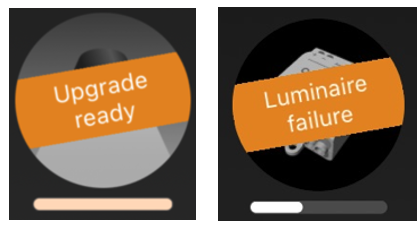
| Luminaire failure | Device profile is not correct for the connected load (e.g., a PWM4 set to 4 channel mode but only having 3 channels of LED strip physically connected) |
| Short circuit | Short circuit detected |
| Overloaded | Device is overloaded. May also be caused by excessive inrush current |
| Open circuit | Device has detected that no load is connected |
| Upgrade ready | Firmware ready to be upgraded from Classic to Evolution |
Example icons:
Possible icon banners that may appear over the device icon in the nearby devices view:
| Text | Notes |
|---|---|
| Address match | Indicates a device previously “paired” to a network that may have been unpaired incorrectly. This banner can appear when using the “Replace device” option. |
| Prototype | Devices without a correct master-key. Do not use for real installations |
| Untrusted | Verification failed during device authentication. Reasons could be due to: • App cannot find the public key for the device • Mismatch in device date versus App expectation |
Example icon: