Schedules
Schedule properties
The Schedule controller (also sometimes referred as a “Timer”) is used to create schedules in spaces which can be configured to turn scenes on and off based on the time or date or sunrise/sunset times.
A schedule is created the same way as the other controllers, as described in previous chapters in this document. Although a schedule object has no exact physical location, it is represented in the layout with a selectable schedule symbol.
-
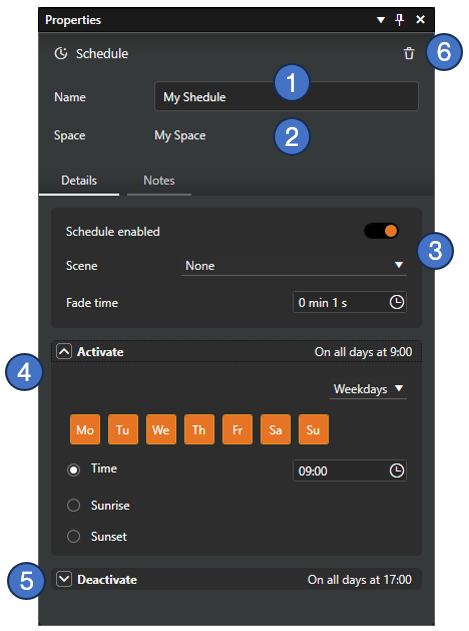
Name of the schedule (mandatory).
-
Space where the schedule belongs to.
-
General settings for the schedule:
- Schedule enable/disable selection
- Scene selection for the schedule
- Fade time for the schedule activation/deactivation
-
Schedule activation parameters. This section can be collapsed and expanded.
-
Schedule deactivation parameters. This section can be collapsed and expanded.
-
The schedule can be deleted by clicking the Delete button (trash can icon) at the top right corner of the property pane. Deleting is possible only with Casambi Pro for Windows.
Schedule properties are similar both in Casambi Pro for Windows and for iOS.
Schedule activation and deactivation settings
For schedule activation and deactivation timing, user can select between three options:
- Weekdays
- Date
- After (Deactivation only)
The “Weekdays” and “Date” timing options are similar both in Activate and Deactivate sections.
- Weekdays
- Date
- After
-
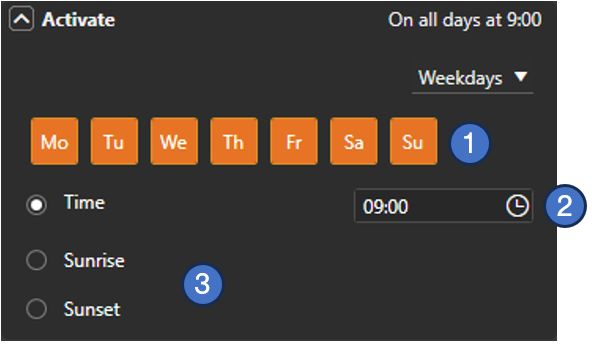
On/Off selection of weekdays when the schedule should be activated/deactivated.
-
Setting for the exact time of day for the schedule activation/deactivation.
-
As an option for the day of time, activation/deactivation can take place at sunrise or sunset. To use these options, the network location needs to be set in project settings. The location setting is initially available only on Casambi Pro for Windows (coming later to iOS version).
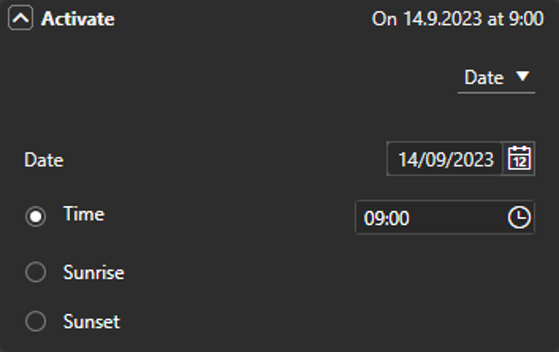
If the Date timing option is selected, the Date setting is displayed instead of weekdays.
The Time, Sunrise and Sunset settings are similar than in the Weekdays option.
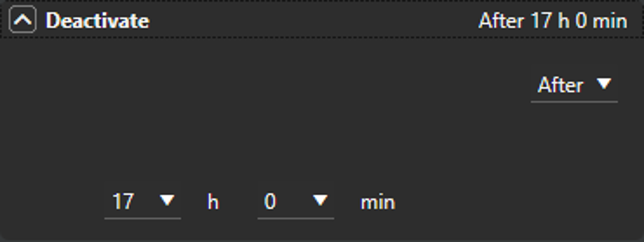
The After timing option is available only in the Deactivate settings.
When After is selected, a time setting is available with a time range 0 h 0 min – 23 h 59 min.