Disconnected editing
This feature enables new scenes to be created or existing scenes to be adjusted without affecting the physical luminaires on-site during the process. This minimises immediate changes to the lighting being visible to users of an area while you are adjusting or fine-tuning settings on an installation that is already in use.
To use the feature, log in to the network with Administrator or Manager rights.
- Go to the Scenes tab and select Edit.
- Tap the offline edit icon that appears (bottom left)
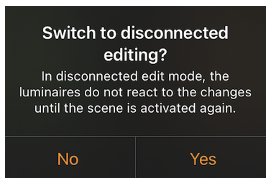
- Read the popup prompt message & select Yes
- DISCONNECTED EDITING will appear at the top of the scenes tab view to indicate that you are in offline edit mode.
- Make the desired changes to the scenes you wish to adjust.
- Push Done (top right) to save the changes.
- DISCONNECTED EDITING will disappear & you are then back to normal mode.
- The new or edited scenes will function the next time they are triggered.

Offline edit icon