First Time Use
Pre-use Information
Always ensure all devices in your network are using the same firmware version before beginning programming or making any programming changes.
After a firmware update you must allow the update to spread and fully update to every devices in the network (i.e. No device icons should display the “Updating” banner). Networks can be used as normal during updates, but network editing (programming changes) must not be made until updates are fully complete.
Using mixed firmware or editing the network programming while updates are still being applied, risks potential configuration errors that may result in erratic or unexpected operation of the mesh network.
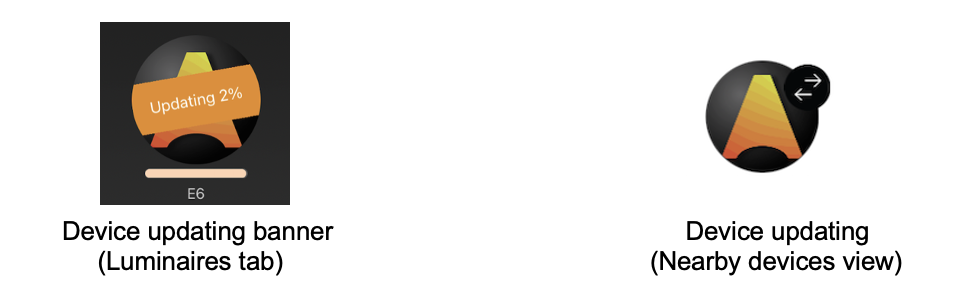
The Firmware type and version can be seen easily in the Nearby devices view (right side). Firmware that is updating will also show the % status. Example: Evolution/39.40 (14%).
Quick start process
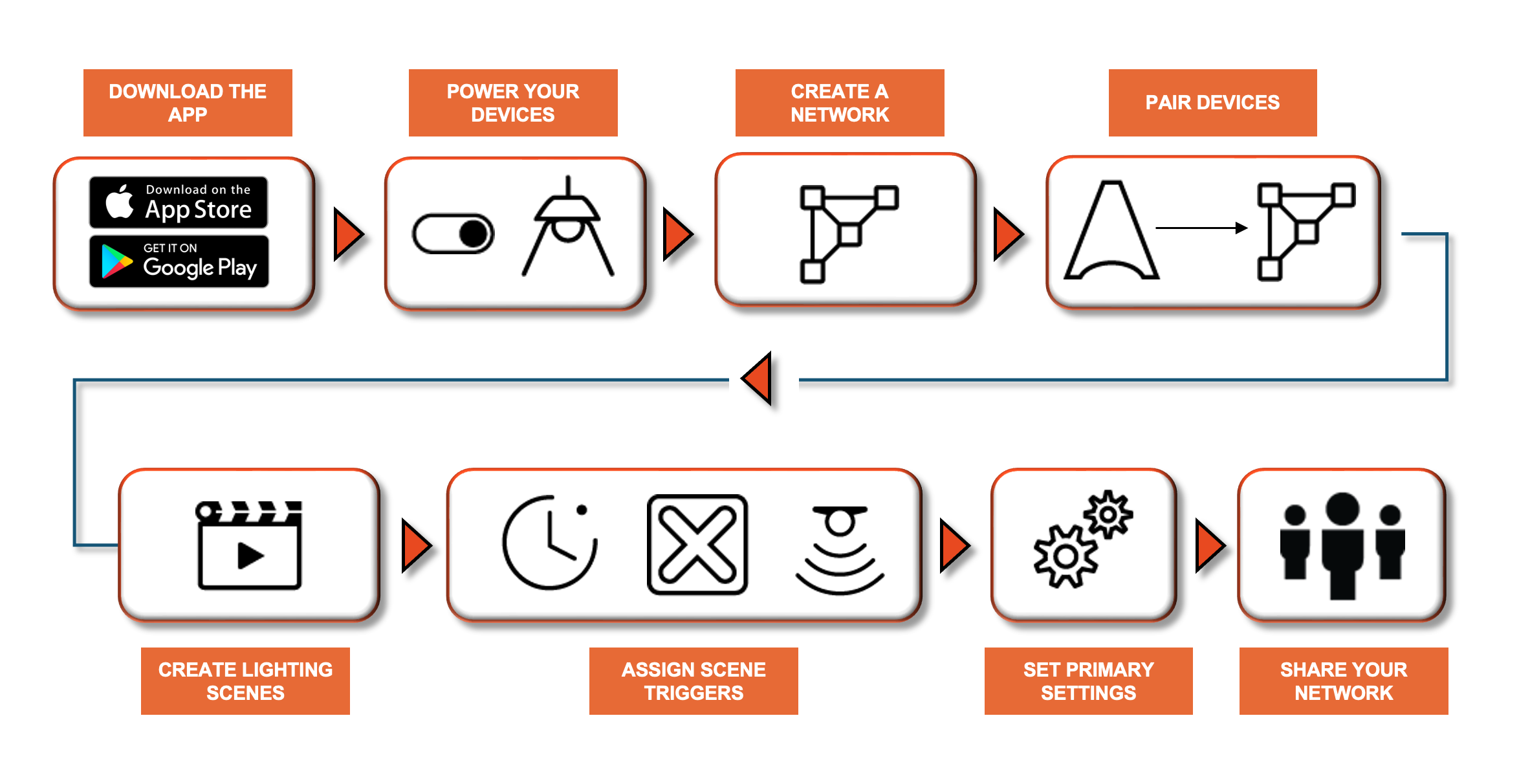
When first taking devices into use they need to be added to a network. One device can only be part of one network. A device that is part of a network is ‘paired’ and cannot be added to any other network unless it is first ‘unpaired’. i.e., removed from the network. All Casambi devices are normally supplied in an unpaired state. If a brand-new device is already paired, please contact your supplier or look for advice in the FAQ section of our website knowledge base.
- Download the app from Apple App Store or Google Play Store.
- Switch on your Casambi enabled devices and open the Casambi app.
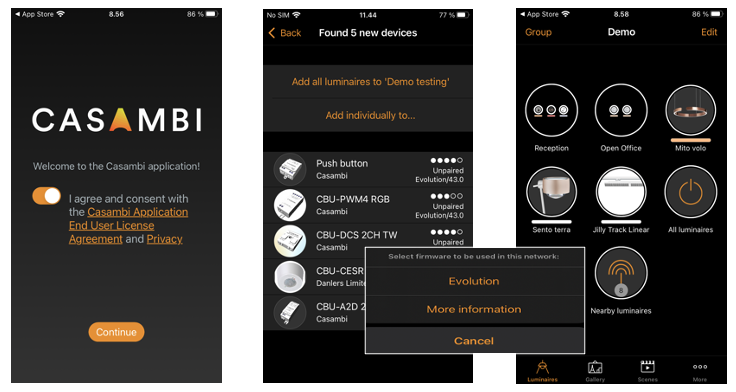
- Allow notifications and requested access. Accept the Licence Agreement and Privacy policy.
- The app will search for all powered Casambi enabled devices within Bluetooth range of your mobile device. These will then be displayed in a list with the options to Add all luminiares... or Add individually to...:
- Add all luminiares will prompt you to create a new network (or add to an existing one). Only Casambi devices with the same firmware type as the network can be added (See Create a network section of this user guide for more information). Once the network is created all devices will automatically be added (paired) to it.
- Add individually to... will prompt you to create a new network (or add to an existing one). Only Casambi devices with the same firmware type as the network can be added (See Create a network section of this user guide for more information). Once a network is created, each luminaire will identify (flash) one by one and can be added to the network (see Add devices section of this guide for more information). During this process you can also decide to rename and group luminaires if desired.
- It is recommended that a new network is shared using the Administrator only setting. See Create a network section for further details on network creation.
- When devices have been added to a network you can control and program them from the app.
Never delete a Network or delete and reinstall the Casambi app without first sharing the network, or unpairing all the devices. Failure to do this will result in devices being visible but uncontrollable. See the section Deleting a network for more information.
The app has four tabs: Luminaires, Gallery, Scenes and More. All of these will be covered in this user guide.
All luminaires in the same network can be easily controlled from the Luminaires tab. Other devices appear in the relevant section of the More tab.
The app displays help text under most configurable options to provide clarification of the purpose of each setting.
There is also an additional Help option in the More tab. A general help button (?) can be found in the bottom right of many screens. This can be disabled in the App settings.
Video Tutorial
The video below was produced from an earlier version of the app so certain aspects may not match the text above.
Time Syncing After a Power Failure
If the power is lost to all Casambi units in a network, then the time information will be lost too. The app needs to be reconnected to the network to enable the time information to be “reseeded” to the devices in the network.
If just one Casambi-enabled device remains powered, it will retain the time information and will automatically “reseed” it to other devices in the network, when power is restored to them.
If there is no app connected to the network, the time in individual units may drift slightly over longer periods of time due to normal electronic component tolerances. It is recommended to periodically (e.g., every 6 months) reconnect the app to the network in order to refresh the time to all devices.
Time will resync when a mobile device running the app & with internet connection is connected to the network regardless of network access rights (User, Manager or Admin)
Also see section: How Does a Casambi Network Retain its Sence of Time