Power failure: How to set a luminaire to resume its last state after power returns?
By default, if a luminaire loses power (either intentionally or unintentionally) it will come on in its "Default" mode when power returns. To make a luminaire come on in the previous state it was in before losing power, you must change the setting "Startup state for power on".
note
See the end of this article for how to apply this setting to all luminaires in a network.
How to change "Startup state for power on" for a single luminaire:
-
In the 'Luminaires' tab, double tap the luminaire icon whose function you wish to change.
-
Scroll down to the "Startup state for power on" option and tap where it says 'Default mode'.
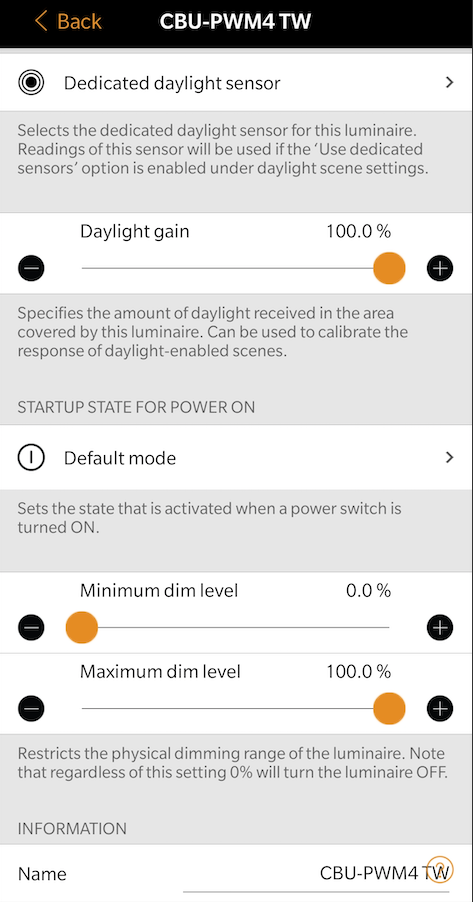
- Select "Last state" and tap 'Back' to exit the view.
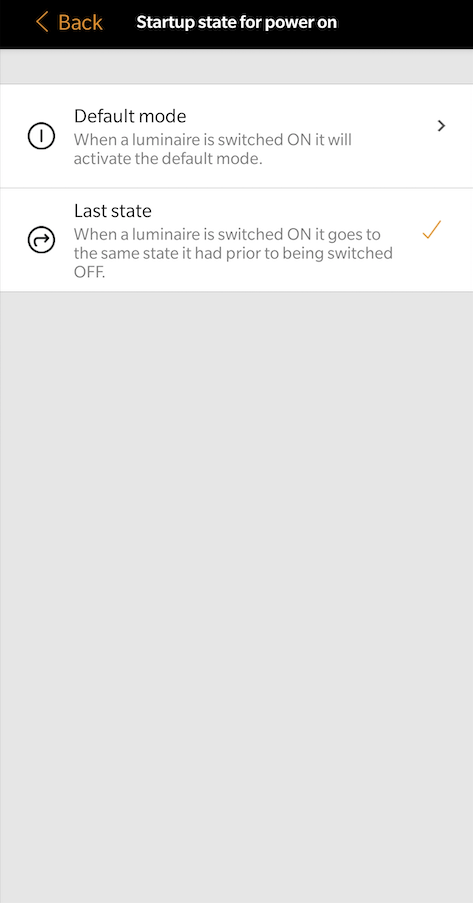
- This luminaire is now set to return to its last state when it is powered ON.
To change this setting for all the luminaires in your network:
-
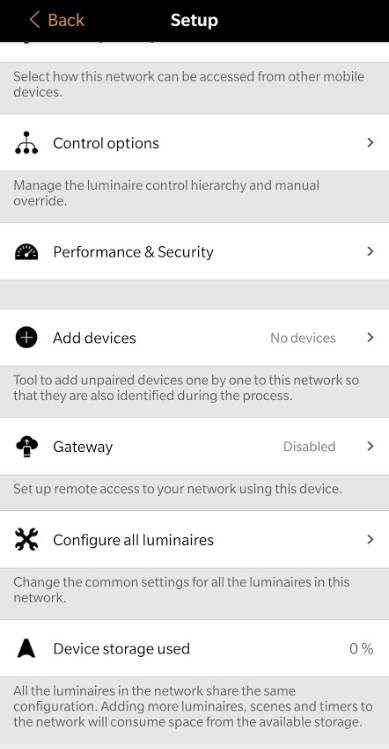
In the "More" tab select "Network setup".
-
Tap on "Configure all luminaires".
- Select the "Startup → last state" option and tap 'Back'.
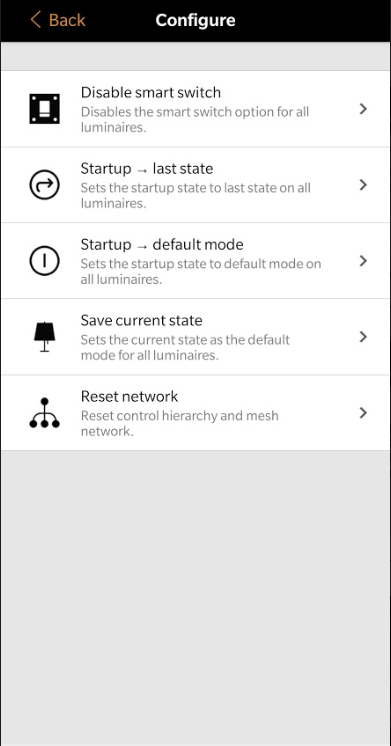
- The "Startup state for power on" for all luminiares in your network has now been changed.